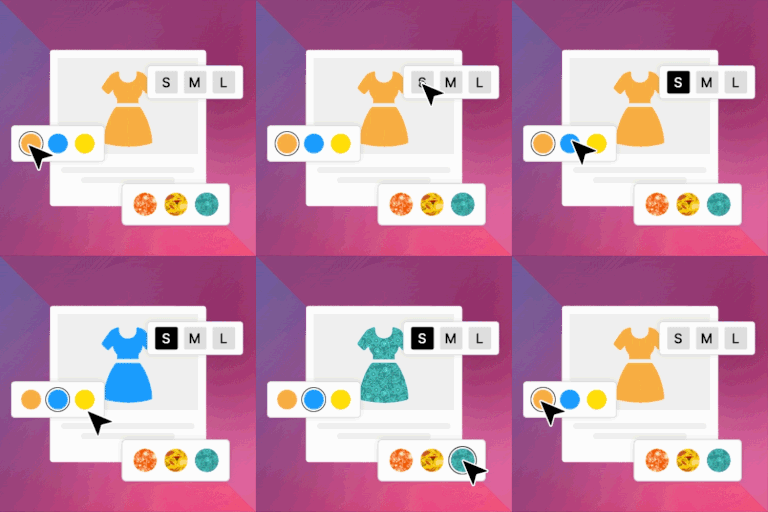
Variation Swatches for WooCommerce
Variation Swatches for WooCommerce plugin adds button, Image, radio, and color swatches to your product attribute & enhance the product selection.
Next Milestone 20K
Unlock Exact Install Count
See the precise estimated active installs for this plugin, calculated from real-time ranking data.
- Exact install estimates within tiers
- Track install growth over time
- Milestone progress predictions
Rank Changes
Downloads Growth
Upgrade to Pro
Unlock 30-day, 90-day, and yearly download history charts with a Pro subscription.
Upgrade NowReviews & Ratings
Tracked Keywords
Showing 5 of 5| Keyword | Position | Change | Type | Updated |
|---|---|---|---|---|
| variation swatches | 37 | — | Tag | 11 hours ago |
| woocommerce variation swatches | 39 | — | Tag | 11 hours ago |
| variation swatches for woocommerce | 41 | — | Tag | 11 hours ago |
| woocommerce variation | 68 | — | Tag | 11 hours ago |
| woocommerce attributes | 113 | — | Tag | 11 hours ago |
Unlock Keyword Analytics
Track keyword rankings, search positions, and discover new ranking opportunities with a Pro subscription.
- Full keyword position tracking
- Historical ranking data
- Competitor keyword analysis
Track This Plugin
Get detailed analytics, keyword tracking, and position alerts delivered to your inbox.
Start Tracking FreePlugin Details
- Version
- 2.4.2
- Last Updated
- Oct 15, 2025
- Requires WP
- 5.3+
- Tested Up To
- 6.8
- PHP Version
- 7.4 or higher
- Author
- ThemeHigh
Support & Rating
- Rating
- ★ ★ ★ ★ ★ 4.9
- Reviews
- 84
- Support Threads
- 0
- Resolved
- 0%
Keywords
Upgrade to Pro
Unlock keyword rankings, search positions, and detailed analytics with a Pro subscription.
Upgrade NowFrequently Asked Questions

Common questions about Variation Swatches for WooCommerce

🔗 Help Docs
🔗 ThemeHigh Support
How to set up Swatches settings in Product Variation Swatches for WooCommerce?
Navigate to Dashboard → Products → Swatches Options → Product Attributes.
Click the Edit button next to an attribute and select the desired Swatch Type (Color, Image, or Label). After making your selection, click Save Changes to apply the Swatches settings.
What is the difference between Global and local attributes?
Global Attributes: Once defined, these attributes will be available to add for all the products. They will be listed in the attributes section of the product, from where you can choose them from the dropdown.
Local Attributes: While global attributes are available to select for all products, local attributes are those that are custom-added to a particular product from the attributes section inside the product details.
What is a tooltip, and how does it work in WooCommerce Variation Swatches?
The tooltip is used to set the hover element for each term of an attribute/variation.
To set the tooltip for swatches:
Navigate to Swatches Options → Swatches Designs→ Tooltip Styling
Enable the checkbox → Enable tooltip.
Save the changes.
👉Note: In the free version, only the attribute term name is displayed as a tooltip. The premium version allows displaying images and descriptions in tooltips.
How to set a variation as default when the page loads?
You can achieve this by providing the default variation in the “Default Form Values” field inside the Products>>Edit product>> Variations.
How to display swatches on the custom pages?
Please add the below filter in your child theme's functions.php
add_filter(‘thwvsf_enqueue_public_scripts', ‘enqueue_public_script’);
function enque_public_script(){
if(is_page (Page Id) {
return true;
}
}
Select the Swatches Design tab
Choose any of the designs, and you can customize the attribute styling, hover and border styling, tooltip styling, and swatch-type-specific styling.
Note: The plugin’s free version only provides 4 swatches designs, whereas the Premium version lets you add as many as you like. Once you’ve done styling Swatches Design, go to Product Attributes
Select any attribute, and from the ‘Design Type’ dropdown menu, select the design you styled.
Click on the Hover and Border Styling option, and then under Selection Style, choose a swatch selection style you prefer.
You can set the size and color of the tick if the chosen style is Checkmark with border
Can I set an image as a tooltip?
With the free version of WooCommerce Variation Swatches, you only have the option to set the term name as a tooltip. If you need Images as the tooltip, you have to Upgrade to Premium Version of WooCommerce Product Variation Swatches.
Is there an option to display the number of products left in the stock?
Upgrade to the Premium version to display the number of products left in stock. Stock left alert (min count) can also be set as per your preference when using WooCommerce Variation Swatches.